1.Create a new Windows Form Application project.
2.Add DocumentViewer
3.Click on DocumentViewer and on smart tag click on create ribbon toolbar
4.Add GridControl, Dock:Fill
5.Bind GridControl :add a datasource from Data Source > Database > Microsoft Access Database File > Choose nwind.mdb,select Employees table
6.Go to DocumentViewer control, click smart tag,select PrintingSystem as Document Source
7.Click on smart tag of printingsystem1 >collections > Add:DevExpress.XtraPrinting.PrintableComponentLink
8.Choose Printing >Component: gridControl1
9.Run the application
Showing posts with label DevExpress. Show all posts
Thursday, October 8, 2015
Thursday, September 10, 2015
How bind data using Layout Control in DevExpress
1.Create a new Windows Form Application project.
2.Drag LayountControl
3.Properties>Dock:Fill
4.Drag to the "Drop controls here" 4 controls:textedit,pictureedit,memoedit and datanavigator
5.Organize Controls.
6.Rename layoutcontrolitem1 for textedit to : Category
7.For pictureEdit,right click and click Hide Text.
8.Rename layoutcontrolitem3 for memoedit to : Description
9.On pictureedit right click ,create empty space item ,make it under pictureedit.
10.Binding:add a datasource from Data Source > Database > Microsoft Access Database File > Choose nwind.mdb,select categories table and bind each control:
bind textedit1 categoryname
bind memoedit1 :description
bind pictureedit1 :picture
bind datanavigator1:categoriesBindingSource
11.Run the application.
2.Drag LayountControl
3.Properties>Dock:Fill
4.Drag to the "Drop controls here" 4 controls:textedit,pictureedit,memoedit and datanavigator
5.Organize Controls.
6.Rename layoutcontrolitem1 for textedit to : Category
7.For pictureEdit,right click and click Hide Text.
8.Rename layoutcontrolitem3 for memoedit to : Description
9.On pictureedit right click ,create empty space item ,make it under pictureedit.
10.Binding:add a datasource from Data Source > Database > Microsoft Access Database File > Choose nwind.mdb,select categories table and bind each control:
bind textedit1 categoryname
bind memoedit1 :description
bind pictureedit1 :picture
bind datanavigator1:categoriesBindingSource
11.Run the application.
Monday, September 7, 2015
How create Gauges in DevExpress
1.Create a new Windows Form Application project.
2.Select 3 gauge controls:
circual full>shining dark
digital>pure dark
linearVertical>clean white
3.Drag two control: textedit control and simple button control,name it OK.
4.Add this code:
5.Run the application.Enter a value in textedit and click on OK.
2.Select 3 gauge controls:
circual full>shining dark
digital>pure dark
linearVertical>clean white
3.Drag two control: textedit control and simple button control,name it OK.
4.Add this code:
5.Run the application.Enter a value in textedit and click on OK.
Wednesday, September 2, 2015
How delete a selected row from GridControl in DevExpress
1.Create a new Windows Form Application project.
2.Add Gridcontrol
3.3.On Gridcontrol,Click on Add Project Data Source > Database > Microsoft Access Database File > Choose nwind.mdb from DevExpress Demos 15.1\Components\Data\nwind.mdb
4.click Next to save the Connection String and Select Orders table.
5.Properties>Dock:Fill
6.Run designer and remove unnecessary columns.
7.Properties>Appearance>UseEmbededNavigator:True
8.Events>UseEmbededNavigator>ButtonClick
9.In code add : using DevExpress.XtraEditors;
10.Add this code:
11.Run the application
2.Add Gridcontrol
3.3.On Gridcontrol,Click on Add Project Data Source > Database > Microsoft Access Database File > Choose nwind.mdb from DevExpress Demos 15.1\Components\Data\nwind.mdb
4.click Next to save the Connection String and Select Orders table.
5.Properties>Dock:Fill
6.Run designer and remove unnecessary columns.
7.Properties>Appearance>UseEmbededNavigator:True
8.Events>UseEmbededNavigator>ButtonClick
9.In code add : using DevExpress.XtraEditors;
10.Add this code:
11.Run the application
Wednesday, August 26, 2015
How create a Chart in DevExpress and bind it to data
1.Create a new Windows Form Application project.
2.Add ChartControl
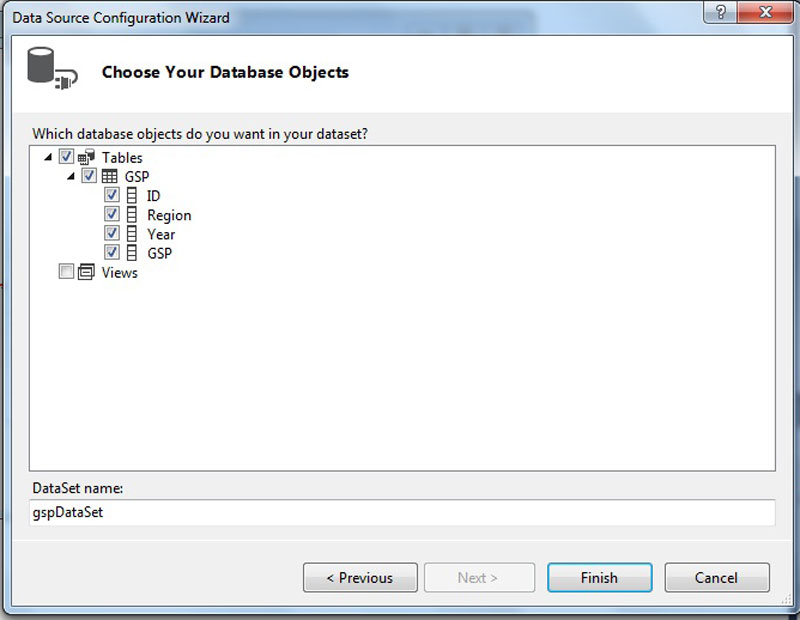
3.On ChartControl,Click on Add Project Data Source > Database > Microsoft Access Database File > Choose gsp.mdb from DevExpress Demos 15.1\Components\Data\gsp.mdb
4.click Next to save the Connection String and Select GSP table.

5.In properties,Go to
Data>Seriesdatamember, set it to :year
Seriestemplates>ArgumentDataMember,set it to :region
Valuesdatamember>Value,set it to :gsp
SeriesNameTemplate>BeginText:gdp in
6.On ChartControl go to ChartControl Tasks and click on Populate, and run the application.
2.Add ChartControl
3.On ChartControl,Click on Add Project Data Source > Database > Microsoft Access Database File > Choose gsp.mdb from DevExpress Demos 15.1\Components\Data\gsp.mdb
4.click Next to save the Connection String and Select GSP table.

5.In properties,Go to
Data>Seriesdatamember, set it to :year
Seriestemplates>ArgumentDataMember,set it to :region
Valuesdatamember>Value,set it to :gsp
SeriesNameTemplate>BeginText:gdp in
6.On ChartControl go to ChartControl Tasks and click on Populate, and run the application.
Subscribe to:
Posts (Atom)